Every teacher knows the ten minutes lost to deciding who sits where, and every wedding host knows the spreadsheet that never quite becomes a plan. This Seating Chart Generator turns a plain list of names into a finished chart in seconds: paste your names, choose a classroom grid or round event tables, and press Generate. Shuffle as many times as you like until the arrangement feels right, then print it for the classroom wall or the venue door, or copy it as text into your own documents. It is free, needs no sign-up, and your list never leaves your browser, which makes it just as safe for a class roster as it is handy for a guest list.
How to Use the Seating Chart Generator
- Paste your names. Copy your class list, guest list, or workshop roster into the box, with exactly one name on each line. Blank lines are ignored, and duplicate names are kept, because real lists often include two people who share a name.
- Choose your layout. Pick Classroom Grid for desks arranged in rows and columns, or Round Tables for receptions, banquets, and group work, where you simply decide how many seats each table holds.
- Set the size. For the grid, enter the rows and columns that match your room. For round tables, enter the seats per table, and the tool works out how many tables your list needs.
- Press Generate. Names are placed in a shuffled, random order, so no one can claim the chart was rigged. If a grid is too small for the list, the extra names are named in a note under the chart instead of being dropped quietly.
- Shuffle, print, or copy. Press Shuffle for a fresh arrangement, Print for a paper copy or a PDF from the print dialog, or Copy as Text to paste the finished chart into a document, an email, or your planning notes.
What Is a Seating Chart Generator?
A seating chart generator takes a list of people and a description of the space, desks in a classroom or tables at an event, and assigns everyone a place. Done by hand, that job involves rubbing out pencil marks, swapping names in a spreadsheet, and still ending with two talkative friends side by side. A generator removes the drudgery by placing names randomly and instantly: if the result does not suit, one more click produces a completely new arrangement, so you can browse possibilities instead of constructing them.
Random placement is not just faster, it is fairer. In a classroom, a shuffled chart ends the weekly negotiation over window seats and back rows. At an event, it gives hosts a neutral starting draft that they can adjust for family politics and friendship groups, rather than a blank page and a rising sense of dread. This tool keeps the whole process deliberately simple: no floor plans to draw, no accounts to create, and no files to upload.
Two Layouts for Two Very Different Rooms
Classroom grid
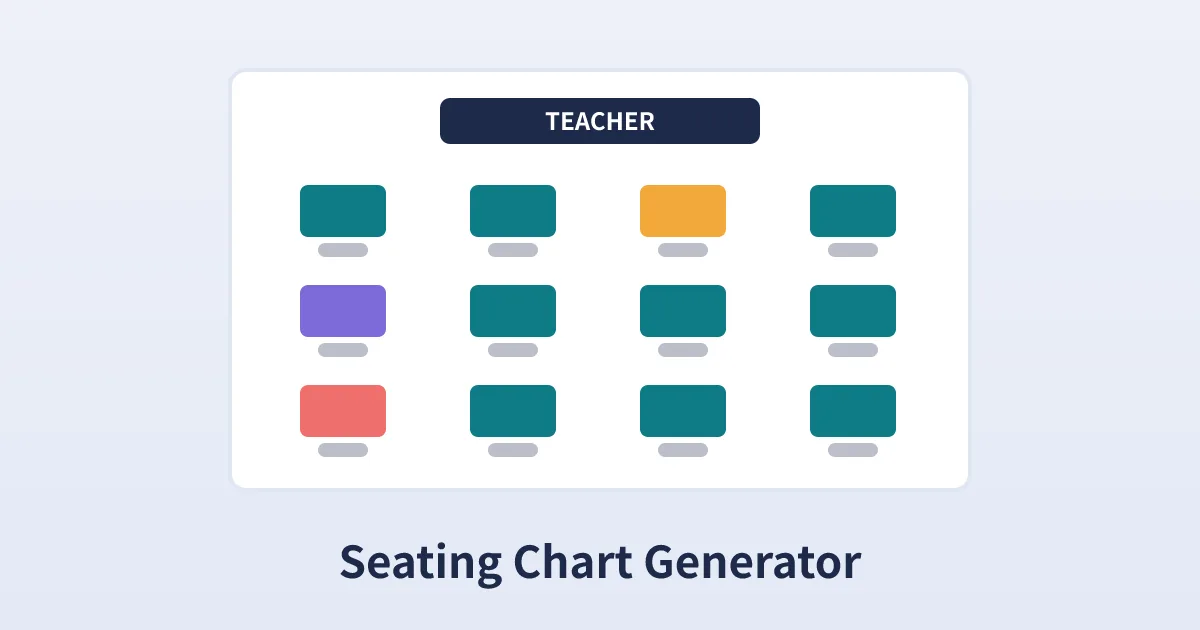
The grid layout mirrors how most classrooms actually look: rows and columns of desks facing the board. Set the grid to match your furniture, for example five rows of six for a class of thirty, and the chart reads like a map of the room, with row one at the front. Empty seats appear as blank boxes, which is genuinely useful in rooms with spare desks, broken chairs, or a reading corner where nobody sits. Teachers commonly generate a new chart each half term, and many keep the first week of a new class in alphabetical order by pasting a sorted list and generating once, then shuffling from the second week onward.
Round tables
The round tables layout suits weddings, banquets, conferences, and any lesson built around group tables. You choose the seats per table, commonly eight or ten at a reception and four to six in a classroom, and the generator fills table after table until everyone is placed. The last table simply has fewer people when the list does not divide neatly, exactly as it would on the day. Event hosts use the output as a working draft: copy it as text, then fine-tune by swapping a few names so that partners, families, and colleagues land together.
Seating Chart Examples
A primary teacher with 28 pupils and a room arranged as four rows of seven generates a grid, prints it, and sticks it beside the board so a supply teacher can learn names within one lesson. Finding two friends still adjacent, she presses Shuffle twice and keeps the version that separates them.
A couple planning a wedding for 86 guests chooses round tables of eight. The generator produces eleven tables, and the couple copies the chart into their planning document, then moves six names by hand so each set of parents hosts a table of their own friends.
A workshop facilitator with 24 attendees and tables of six generates a mixed chart on the morning of the session, deliberately shuffling strangers together so the first exercise starts with new conversations rather than clusters of colleagues.
Where to Use a Seating Chart Generator
- Classrooms: New terms, new classes, and behaviour resets. A fresh shuffled chart separates unhelpful pairings, mixes groups fairly, and gives substitute teachers an instant map of who is who.
- Weddings: Reception tables are the classic use. Generate the draft, copy it into your planning notes, then adjust for families, single friends who need good company, and guests who should be kept apart.
- Workshops and training days: Deliberately mixed tables make group exercises work better. Generate the chart at registration and project it as people arrive.
- Banquets, galas, and club dinners: Any event with numbered tables and a guest list benefits from a quick random draft that a organiser can then polish.
- Exams and study groups: A grid chart spreads candidates or study partners evenly through a room, with empty seats shown clearly where spacing matters.
- Community groups and quizzes: Rotate who sits with whom each week so the same cliques do not form, keeping the group friendly and mixed.
Tips for Better Seating Charts
Start from a clean list. One name per line, spelled the way you want it printed. Adding a surname initial to duplicates, for example Sam K and Sam R, prevents confusion when the chart is read aloud or pinned to a door.
Match the grid to the real room. Count the desks you actually have, not the number you wish you had, and check which seats are unusable before generating. A chart that matches the furniture survives contact with Monday morning.
Shuffle with intent. Random does not mean careless. Generate a chart, scan for the two or three placements you know will not work, and shuffle again rather than swapping by hand and disturbing the fairness of the rest.
Print two copies. One for display and one for your folder or the venue coordinator. From the print dialog you can also save a PDF, which is the easiest way to share the final chart with a co-teacher or fellow organiser.
Keep names private. Because this tool works entirely in your browser, the list you paste goes nowhere. Even so, first names with initials are a good habit for any chart that will be displayed in a public place.
Related Calculators
Frequently Asked Questions
Is the seating chart generator free to use?
Yes. It is completely free, with no sign-up, no download and no limit on the number of names or charts. Paste your list, choose a layout and generate as many charts as you like. Everything runs in your browser, so the tool works on a school laptop, a home computer or a phone.
How do I make a classroom seating chart?
Paste your class list into the names box, one student per line. Leave the layout on Classroom Grid, set the rows and columns to match the desks in your room, and press Generate. Students are placed in a shuffled order. Press Shuffle for a different arrangement, then Print to put the chart on paper or save it as a PDF from the print dialog.
Can I use this seating chart generator for a wedding or event?
Yes. Switch the layout to Round Tables and set the seats per table, eight or ten being typical for a reception. The generator deals your guests across as many tables as the list needs. It makes an excellent first draft: copy the result as text into your planning document, then swap individual names by hand until families and friendship groups sit exactly where you want them.
What happens if there are more names than seats in the grid?
Nobody is silently dropped. The grid fills every seat, and any names that did not fit are listed in a clear note under the chart, both on screen and in the copied text. Increase the rows or columns and generate again, or seat the extra names separately if that suits your room better.
What happens if the same name appears twice?
Duplicate names are kept exactly as pasted, because real lists often contain two students or guests with the same name. Both copies get their own seat. If it helps, add a surname initial or a small note in brackets to each duplicate before generating, so the printed chart is easy to read aloud.
Is my class list or guest list private?
Yes. The generator runs entirely in your browser. Your names are never uploaded, stored or sent anywhere, and nothing is saved when you close the page. That makes the tool safe for class rosters, where using first names plus a surname initial is a sensible habit in any case.
Can I print the chart or save it as a PDF?
Yes. Press the Print button and the chart prints with its boxes and tables kept clean and readable. To keep a digital copy instead, choose Save as PDF in your browser print dialog. Teachers often print one copy for the classroom wall and one for the substitute teacher folder; hosts often print one for the venue door.