Turn a picture into a proper Windows icon file, right in your browser. This ico converter takes a PNG, JPG or WebP image and packs it into a single .ico file holding every size you tick, so the same file can serve as a website favicon, a desktop shortcut icon and an app icon. Nothing is uploaded, there is no sign-up and no watermark: the conversion happens on your own device, and the result keeps any transparency your source image has.
No image chosen yet. PNG, JPEG, WebP, GIF and BMP files all work as input. A square image of at least 256 by 256 pixels gives the sharpest icons.
Sizes to pack into the .ico file
Conversion is local: your image never leaves this device. If your image is not square, it is centered on a transparent square at each size, so nothing is stretched or cropped away.
What Is an ICO File?
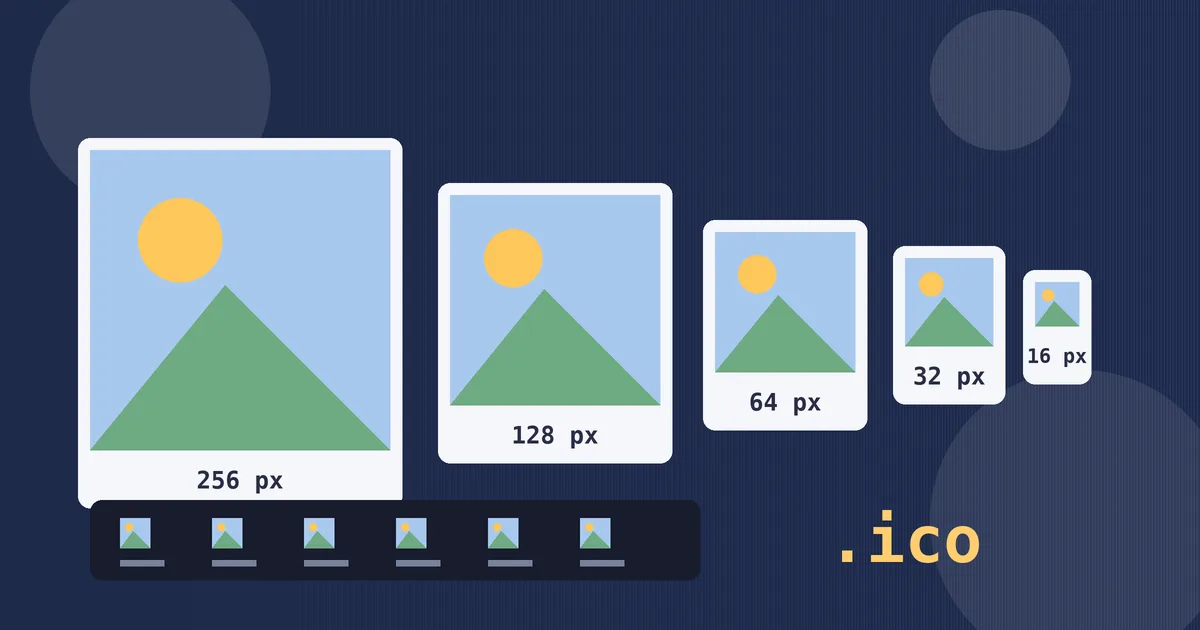
An ICO file is the icon container Microsoft introduced with the first version of Windows, and it is still the format Windows and web browsers reach for when a program, a shortcut or a website needs a small picture. The name container is the key: a single .ico file does not hold one picture, it holds several copies of the same artwork at different pixel sizes, stacked inside one file. Whatever program displays the icon looks inside, picks the copy closest to the size it needs, and shows that one.
That design solves a real problem. An icon is shown at wildly different sizes: 16 pixels wide in a browser tab, 32 pixels on a taskbar, 48 pixels or more on a desktop, and 256 pixels in a large folder view. One fixed-size image cannot serve all of those well. Scaled down it turns muddy, and scaled up it turns blocky. A multi-size ICO avoids both failures, because each stored copy was rendered properly at its own size.
Each picture inside a modern ICO is stored as a complete PNG image at 32-bit colour depth: 24 bits of colour plus an 8-bit transparency channel. That layout has been understood by every Windows release since Vista and by all current browsers, which is why this converter builds its files that way. ICO also has a hard ceiling: no picture inside it can exceed 256 by 256 pixels, because the directory stores each width and height in a single byte, and the value 0 is reserved to mean 256. Keep a PNG as your master image and treat the ICO as the delivery format.
How to Use This ICO Converter
- Choose your image. Pick a PNG, JPG, WebP, GIF or BMP file. The tool reads it locally and shows its name, format, pixel dimensions and file size, with a preview, so you can confirm you grabbed the right artwork before converting.
- Tick the sizes you want packed. Seven sizes are offered, from 16 to 256 pixels. The default set of 16, 32 and 48 covers a website favicon. Add 64, 128 and 256 when the icon will also appear on desktops and in large folder views.
- Press Convert to ICO. The image is drawn at each ticked size and the copies are assembled into one .ico file. The result line reports how many sizes were packed and the finished file size.
- Download and rename if needed. The file keeps your image name with a .ico extension, so logo.png becomes logo.ico. For a website, rename it to favicon.ico, which is the exact filename browsers ask for by default.
Which Sizes You Need and Why: Favicon vs Windows Icon
The right size set depends on where the icon will live, and ticking everything is not always best: the 256-pixel copy is by far the largest part of the file, and a website that only ever shows a tab icon gains nothing from carrying it. Use this table as the short guide.
| Size | Where it is shown | Worth including? |
|---|---|---|
| 16 px | Browser tabs, small list views | Yes, always |
| 24 px | Toolbars and browser menus | For Windows apps |
| 32 px | High-density tabs, taskbar, bookmarks | Yes, always |
| 48 px | Desktop shortcuts, medium folder views | Yes, for sites and apps |
| 64 px | Large folder views, pinned shortcuts | For Windows apps |
| 128 px | Very large folder views | Optional |
| 256 px | Extra-large views, crisp app icons | For Windows apps, skip for a plain favicon |
For a website favicon, the job is small and specific. A browser tab draws the icon at 16 pixels on a standard screen and 32 on a high-density one, and a pinned or bookmarked site may use 48. A file holding just 16, 32 and 48, which is this tool's default, stays tiny, loads instantly, and still looks sharp everywhere a favicon actually appears. Modern phones mostly use separate PNG touch icons rather than the ICO, so there is no need to bloat the favicon for their sake.
For a Windows application or shortcut, include the full ladder. Windows picks different sizes for the taskbar, the desktop, the Start menu and each folder view, and it will scale whatever it has if an exact size is missing, which is exactly the blur the format exists to prevent. Adding 64, 128 and 256 makes the file bigger, but an app icon is downloaded once with the program, so sharpness at every size is worth the kilobytes.
How the Conversion Works
The converter follows a decode, redraw and repack path, with one extra step at the end. Your browser first decodes the source file into raw pixels in memory. For each size you ticked, it then draws the image onto a fresh square canvas of exactly that size. If the source is not square, the picture is scaled to fit inside the square and centered, with the leftover space left transparent: nothing is stretched out of shape and nothing is cropped off the edges. Each finished canvas is encoded as a PNG, which preserves the transparency of PNG and WebP sources exactly.
Then comes the part that makes an ICO an ICO rather than a renamed picture. The file is assembled byte by byte: a short header (called ICONDIR) states that this is an icon file and how many pictures it contains, followed by one directory entry per size recording its width and height, 32-bit colour depth, where its PNG data starts, and how long that data is. The PNG copies follow the directory, in order, and because the directory describes every picture precisely, Windows and browsers can jump straight to the size they want. A file that skips this structure and simply renames a PNG to .ico may display in forgiving browsers, but it is not a real icon file, and stricter software rejects it. The files built here pass that structural test, which the tool's own checks verify down to the individual bytes.
Start with the best source you have. A 256 by 256 or larger square PNG gives every smaller size clean material to shrink from, and shrinking is kinder than enlarging: if your only copy of a logo is 32 pixels wide, the 256-pixel version in the file can only be a blurred enlargement of it. Simple, bold artwork also survives the journey best, because fine lines and small text that look elegant at full size dissolve into noise at 16 pixels.
Practical Examples
A new website needs a favicon. The designer exports the logo as a 512 by 512 PNG. Converting it with the default 16, 32 and 48 sizes ticked produces a favicon.ico of only a few kilobytes. Saved into the site's root folder under that exact name, it appears in tabs, bookmarks and history in every browser, with no code changes needed, though adding a link tag pointing to it is still good practice.
A small Windows utility ships its first release. The developer's icon is a JPG saved from a design tool, 800 by 800. JPG has no transparency, so the icon will sit on a solid square of whatever colour fills the frame; knowing that, the developer first re-exports a PNG with a transparent background, then converts with all seven sizes ticked. The installer and the finished program both use the one file, and the icon stays crisp from the taskbar to the extra-large folder view.
A family photo becomes a folder icon. A wide holiday snapshot, 4000 by 3000, is set as the picture for a shared folder. Because the converter centers non-square images on a transparent square instead of stretching them, the photo keeps its proportions, letterboxed by clear space above and below. At icon sizes a busy photo reads as a colourful smudge: single bold subjects make far better icons than group scenes.
Related Image Tools
An ICO is a container, not a general image format. The Image Format Converter changes a picture between PNG, JPG and WebP for everyday use, but it cannot produce an .ico file; this converter exists precisely for that gap, and the two pair well when a downloaded WebP logo first needs to become a PNG. If the same artwork also has to travel as a document, the Image to PDF Converter assembles pictures into a PDF, and the Pixel to Inches Converter answers the print-size question that icon work never asks. For documents generally, the Text to PDF Converter covers the text side of the same workflow.
Frequently Asked Questions
How do I convert a PNG to ICO?
Choose your PNG above, tick the sizes you want inside the file (16, 32 and 48 suit most favicons), and press Convert to ICO. Then download the result, which keeps your original filename with a .ico extension. Everything runs in your browser, so the conversion is finished in a second or two.
Can one ICO file really contain several sizes?
Yes, and that is the whole point of the format. An ICO is a container with a small directory at the front listing each stored picture, its size and where its data sits in the file. Windows and browsers read the directory, pick the copy closest to the size they need, and display that one, so every context gets a properly rendered icon instead of a scaled guess.
Which sizes should a favicon ICO include?
Include 16, 32 and 48 pixels. The 16-pixel copy serves standard browser tabs, 32 covers high-density displays and taskbars, and 48 covers bookmarks and pinned sites. That default set in this converter keeps the file to a few kilobytes. Add 64, 128 and 256 only when the same file must also work as a Windows desktop or application icon.
Does this ICO converter keep transparency?
Yes, for sources that have it. PNG and WebP images carry an alpha channel, it survives the redraw at every size, and each copy inside the ICO is stored as a 32-bit PNG, so a transparent logo stays transparent on any background. A JPG source has no transparency to keep, so its background stays whatever solid colour the picture already has.
What happens if my image is not square?
It is centered on a transparent square at each size, scaled to fit without stretching and without cropping anything away. A wide photo gets clear space above and below, and a tall logo gets clear space at the sides. For the cleanest result, start from a square source, because icons are square everywhere they are displayed.
Is my image uploaded to a server when I convert it?
No. The file is decoded, redrawn and packed into an ICO entirely by your own browser, using its built-in canvas tools. Nothing is transmitted, stored or logged, which makes the converter safe for unreleased logos, app artwork and personal pictures, and it works exactly the same on phones, tablets and computers.