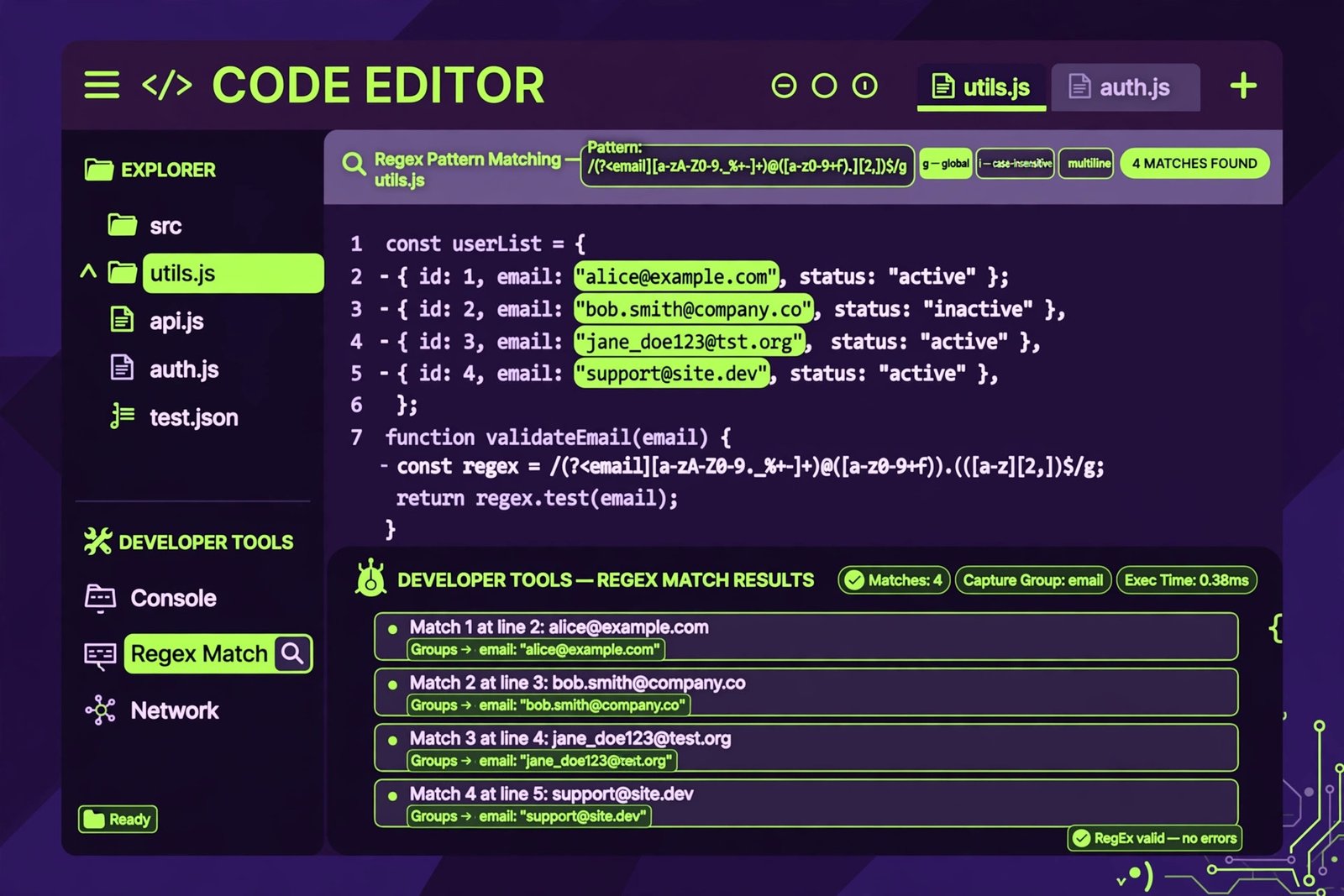
Matches update live as you type. This tester uses JavaScript regular expressions.
Regular expressions are one of the most powerful tools in a programmer's toolkit, yet they have a reputation for being cryptic and unforgiving. A single misplaced character can mean the difference between a pattern that works perfectly and one that matches nothing at all. The Regex Tester above removes the guesswork: type a pattern, paste in some test text, and watch every match light up in real time, complete with match counts and capture group details.
Whether you are validating form input, parsing log files, or learning regex for the first time, testing your pattern interactively is far faster than running code over and over. This guide explains what regular expressions are, how the flags work, and which patterns solve the most common real-world problems.
What Is a Regular Expression?
A regular expression, often shortened to regex or regexp, is a sequence of characters that defines a search pattern. Instead of searching for one exact string, a regex describes a whole family of strings. The pattern \d+, for instance, matches one or more digits anywhere they appear, so it finds "42", "007", and "12345" alike.
Regex engines exist in nearly every programming language: JavaScript, Python, Java, PHP, Ruby, Go, and more. The tester on this page uses the JavaScript regex engine, which covers the vast majority of everyday use cases. While small dialect differences exist between languages, the core syntax of character classes, quantifiers, anchors, and groups is universal.
Regular expressions shine wherever text follows a predictable shape: email addresses, phone numbers, dates, URLs, postal codes, and identifiers. They are less suitable for deeply nested structures like HTML or for tasks requiring real understanding of meaning, where a proper parser or machine learning model is the better choice.
How to Use This Regex Tester
Using the tester is simple. Enter your pattern in the pattern field at the top, then paste or type your test text into the larger box below. Matches highlight instantly as you type, with no button to press. The match counter tells you how many matches were found, and if your pattern contains capture groups, each group's captured text is listed separately.
The five flag checkboxes modify how the pattern behaves. The g flag is on by default so you see every match; turn it off to inspect only the first. Toggle i for case-insensitive matching, m when working with multi-line text and the ^ and $ anchors, s to let the dot match newlines, and u for full Unicode handling.
If your pattern has a syntax error, the tester shows the exact error message instead of failing silently, which makes debugging far less painful. The Load Sample button fills in a working email pattern with test text so you can experiment immediately, and Clear resets everything.
Regex Flags Explained
Flags change the rules of the match without changing the pattern itself. Understanding them is essential because the same pattern can behave very differently under different flags.
| Flag | Name | Effect | Example Use |
|---|---|---|---|
g |
Global | Finds all matches instead of stopping at the first | Counting every email in a document |
i |
Ignore case | Makes matching case-insensitive | Matching "Error", "ERROR", and "error" |
m |
Multiline | ^ and $ match at line boundaries, not just string boundaries |
Finding lines that start with a number |
s |
DotAll | The dot matches newline characters too | Matching content across multiple lines |
u |
Unicode | Enables full Unicode matching and stricter syntax | Working with emoji or non-Latin scripts |
A common beginner mistake is forgetting the g flag and wondering why only the first match appears. Another is forgetting m when validating line-by-line data with anchors. When a pattern misbehaves, checking the flags is always a good first step.
Common Regex Patterns for Everyday Tasks
Most developers end up reusing a small set of patterns. The table below collects battle-tested patterns for the jobs that come up again and again. Paste any of them into the tester to see them in action.
| Task | Pattern | Notes |
|---|---|---|
| Email address | \b[\w.%+-]+@[\w.-]+\.[A-Za-z]{2,}\b |
Practical validation; not RFC-perfect but works for real forms |
| URL | https?://[^\s/$.?#].[^\s]* |
Matches http and https links |
| US phone number | \b\d{3}[-.\s]?\d{3}[-.\s]?\d{4}\b |
Handles 555-123-4567, 555.123.4567, 555 123 4567 |
| Date (YYYY-MM-DD) | \b\d{4}-\d{2}-\d{2}\b |
Checks format, not calendar validity |
| Digits only | ^\d+$ |
Entire string must be digits |
| Alphanumeric username | ^[A-Za-z0-9_]{3,16}$ |
3 to 16 characters, letters, digits, underscore |
| Hex color | ^#(?:[0-9a-fA-F]{3}){1,2}$ |
Matches #fff and #ffffff |
| IPv4 address | \b(?:\d{1,3}\.){3}\d{1,3}\b |
Format check; use code for range validation |
| Whitespace trim | ^\s+|\s+$ |
With the g flag, for trimming both ends |
| Duplicate words | \b(\w+)\s+\1\b |
Uses a backreference to catch "the the" |
| Strong password | ^(?=.*[a-z])(?=.*[A-Z])(?=.*\d).{8,}$ |
At least 8 characters with a lowercase, an uppercase, and a digit — uses lookaheads |
A word of caution about email validation: the truly complete pattern for the email specification is famously enormous and impractical. For real applications, a reasonable pattern plus sending a confirmation email beats any mega-regex.
Special Characters Cheat Sheet
Regex syntax is built from a compact set of metacharacters. Memorizing these covers most of what you will ever need.
| Syntax | Meaning |
|---|---|
. |
Any character except newline (or including newline with the s flag) |
\d \D |
Digit / non-digit |
\w \W |
Word character (letters, digits, underscore) / non-word character |
\s \S |
Whitespace / non-whitespace |
* + ? |
Zero or more / one or more / zero or one of the preceding |
{n} {n,} {n,m} |
Exactly n / n or more / between n and m repetitions |
^ $ |
Start / end of string (or line with the m flag) |
[abc] [^abc] |
Character class: one of / one except these characters |
( ) (?: ) |
Capturing group / non-capturing group |
| |
Alternation (OR) |
\b |
Word boundary |
\1 |
Backreference to capture group 1 |
To match a metacharacter literally, escape it with a backslash: \. matches a real period, \$ matches a dollar sign, and \\ matches a backslash.
Capture Groups Explained
Parentheses do two jobs in regex: they group parts of a pattern together, and they capture the matched text for later use. In the pattern (\d{4})-(\d{2})-(\d{2}) applied to "2026-10-17", group 1 captures "2026", group 2 captures "10", and group 3 captures "17". The tester lists every group's content under each match so you can verify your grouping logic visually.
When you need grouping without capturing, for example around an alternation, use a non-capturing group (?:...). This keeps group numbering clean and can improve performance slightly. Named capture groups, written (?<year>\d{4}) in JavaScript, let you refer to groups by name instead of number, which makes complex patterns far more readable.
Backreferences like \1 reuse what a group already matched, which is how the duplicate-word pattern above works. They are powerful but can make patterns harder to read, so use them deliberately.
Lookahead and Lookbehind
Sometimes you need to check what comes before or after a match without including it in the match itself. That is what lookarounds do: they are zero-width assertions, which means they test a condition at a position without consuming any characters.
Positive lookahead (?=...) requires whatever follows to match. The pattern \d+(?=\sUSD) applied to "100 USD and 50 EUR" matches only "100" — the "50" is rejected because it is not followed by USD. Negative lookahead (?!...) flips the condition: \b\d+\b(?!\sUSD) on the same text matches "50" instead — the word boundaries stop it from matching a piece of "100".
Lookbehind works the same way in the backward direction. (?<=\$)\d+(\.\d{2})? applied to "Price: $19.99" captures "19.99" without the dollar sign, which is perfect for extracting amounts while leaving currency symbols out of your data. Negative lookbehind (? matches numbers that do not follow a dollar sign. Lookbehind needs a modern engine (ES2018 or later), and since every current browser qualifies and this tester uses your browser's engine, these patterns work right here.
Tips for Writing Better Regular Expressions
Start specific and loosen gradually. Begin with a pattern that matches your known-good examples, test it against them, then add tricky cases one at a time. Anchor your patterns with ^ and $ when the entire string must match, as in form validation, to prevent partial matches from slipping through.
Prefer lazy quantifiers when extracting delimited content. The greedy pattern <.*> applied to "<b>hi</b>" matches the whole string, while the lazy <.*?> matches each tag separately. This single distinction fixes a large share of beginner extraction bugs.
Test with adversarial input, not just happy paths. Feed your pattern empty strings, very long strings, Unicode text, and strings that almost match. Catastrophic backtracking, where a pattern takes exponentially long on certain inputs, is the classic regex performance trap; nested quantifiers like (a+)+$ are the usual culprits.
Frequently Asked Questions
What is a regex tester used for?
A regex tester lets you try out regular expression patterns against sample text and see the matches instantly. It is used for building patterns for form validation, debugging patterns that do not behave as expected, learning regex syntax interactively, and verifying capture groups before putting the pattern into real code.
Why is my regex not matching anything?
The most common causes are unescaped special characters, such as a literal period written as . instead of \., missing flags like the i flag for case differences, and anchors like ^ and $ that are stricter than intended. Paste the pattern and text into the tester above and check the error panel, then simplify the pattern until it matches and rebuild from there.
What is the difference between greedy and lazy matching?
Greedy quantifiers (*, +) match as much text as possible while still allowing the overall pattern to succeed. Lazy quantifiers (*?, +?) match as little as possible. For example, against "<b>hi</b>", the greedy pattern <.*> matches the entire string, while the lazy pattern <.*?> matches "<b>" and then "</b>" separately.
How do I validate an email address with regex?
A practical pattern is \b[\w.%+-]+@[\w.-]+\.[A-Za-z]{2,}\b, which handles the vast majority of real addresses. No reasonable-length regex fully implements the email specification, so for production systems combine a sensible pattern with a confirmation email to the address.
What do the regex flags g, i, and m do?
The g flag finds all matches instead of stopping at the first. The i flag makes matching case-insensitive so "a" matches "A". The m flag makes the ^ and $ anchors work at line boundaries within multi-line text rather than only at the very start and end of the string.
Are JavaScript regular expressions different from Python or other languages?
The core syntax is nearly identical across languages, so patterns usually transfer directly. Differences appear in advanced features: lookbehind support, named group syntax, Unicode handling, and available flags vary. Always do a final test in your target language, but this JavaScript-based tester is an excellent starting point for any dialect.
Is my test text sent to a server?
No. This tester runs entirely in your browser using JavaScript's built-in RegExp engine, so your pattern and test text never leave your device. You can safely test patterns against sensitive sample data, such as log excerpts or customer records.
Why is my regex extremely slow or freezing the page?
The usual cause is catastrophic backtracking: nested quantifiers like (a+)+ force the engine to try an exponential number of combinations on text that almost matches. Simplify the pattern, avoid stacking quantifiers on the same group, anchor it where possible, and always test against failing input — not just matching input — before using it in production.