Turn a set of photos, scans or screenshots into one tidy PDF document, right here in your browser. Add your JPEG, PNG, WebP or other images, choose a page size, and this tool builds a valid PDF with one image per page, in the order you set. Nothing is uploaded to a server: the file is assembled on your device, so private documents, ID scans and family photos never leave your hands.
No images added yet. Your files are processed locally in your browser and are never uploaded, stored or shared.
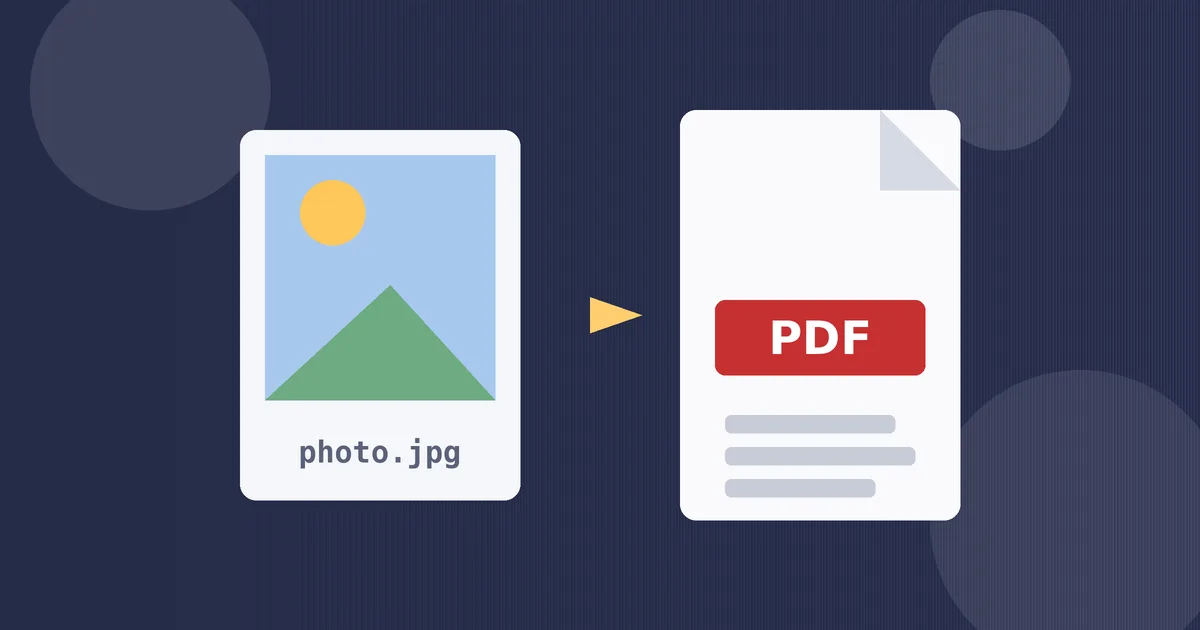
How to Use This Image to PDF Converter
- Add your images. Tap Choose images and pick one file or many at once. JPEG, PNG, WebP, GIF and BMP all work, and you can mix formats in the same document. Each file appears in the numbered list with its pixel size, in the order it will appear in the PDF.
- Check the order. Pages follow the list from top to bottom. Use the Remove button to drop a file, then add it again if you need it later in the document.
- Pick a page size. A4 suits most forms and printers outside the US, Letter suits North American paperwork, and Fit to image makes every page exactly the size of its picture, with no white border at all.
- Set orientation and margin. Auto turns the page sideways for wide photos and keeps it upright for tall ones. A standard margin keeps images clear of the area most home printers cannot reach.
- Build and download. Press Build PDF, wait a moment while the file is assembled on your device, then use the Download PDF link that appears. The note under the buttons tells you the page count and the final file size.
Why Convert Images to PDF?
Photos are easy to take and awkward to hand over. A form portal, a university admissions page or a visa application rarely accepts a loose pile of image files; it asks for one document, usually a PDF. Converting your images into a single PDF solves that in one step: one file to attach, one file to email, and one file that opens the same way on every phone, computer and printer.
PDF also protects your images from silent damage. Messaging apps and social platforms routinely shrink and recompress photos when you send them, which is fine for a chat and bad for a scanned contract or a portfolio piece. Inside a PDF built by this tool, a JPEG stays exactly as it was, byte for byte, so the person at the other end sees the quality you sent.
There are quieter benefits too. A PDF keeps multi-page evidence together, so receipts for an expense claim, pages of a handwritten assignment, or before-and-after photos of a repair stay in one ordered file instead of scattering across a downloads folder. And because the layout is fixed, nothing reflows or rotates when the file is printed.
How It Works: Page Sizes, Points and Fitting
PDF pages are measured in points, where one point is 1/72 of an inch. A4 is 595 by 842 points and US Letter is 612 by 792 points. When you choose Fit to image, the page is sized from the picture itself: screens define an image pixel as 1/96 of an inch, so converting pixels to points means multiplying by 72/96, which is 0.75. A 2000-pixel-wide photo therefore gets a 1500-point-wide page.
On a fixed page size, each image is scaled to fit inside the page minus the margin, keeping its shape. The scale factor is the smaller of the two ratios:
scale = min( (page width − 2 × margin) / image width, (page height − 2 × margin) / image height )
The scaled image is then centered on the page, so any leftover space is split evenly on both sides. Nothing is cropped and nothing is stretched; a wide photo on a portrait page simply leaves white bands above and below.
The clever part is how the picture is stored. PDF natively supports JPEG data through a filter called DCTDecode, which is the very compression JPEG files already use. So when your source is a JPEG, this tool embeds the original bytes directly: converting a JPEG to PDF here adds no new compression and removes no detail. PNG, WebP and other formats are drawn once onto a canvas and encoded as JPEG at 92 percent quality, a level where the difference is invisible in normal viewing.
Worked Examples
| Image | Settings | Result on the page |
|---|---|---|
| Photo, 3000 x 2000 px | A4 portrait, 36 pt margin | Usable area 523 x 770 pt; scale 0.174; image placed at 523 x 348.7 pt, centered |
| Photo, 3000 x 2000 px | Fit to image, no margin | Page becomes 2250 x 1500 pt and the photo fills it exactly, edge to edge |
| Phone screenshot, 1170 x 2532 px | Letter, auto orientation, no margin | Auto keeps portrait; scale 0.313; image placed at 366 x 792 pt, full page height |
The first example shows why the margin setting matters for printing: without it, the photo would run to the very edge of the A4 sheet, and most home printers would clip a few millimetres. The second shows the opposite goal, a borderless page for on-screen viewing. The third is the everyday case for scanned homework and app screenshots, where full height matters more than full width.
How to Convert a Picture to PDF on iPhone
iPhone owners ask this constantly, because the Photos app has no obvious export-to-PDF button. The quickest route is the tool on this page: open it in Safari, tap Choose images, and pick photos from your library. The PDF is built on the phone itself and the download lands in the Files app, ready to attach to an email or a form. The same steps work on Android in Chrome.
Two built-in alternatives are worth knowing. In the Files app you can long-press selected images and choose Create PDF, and in Photos you can open the share sheet, choose Print, and pinch outwards on the print preview to reveal a PDF you can share. Both work, but neither lets you set page size, orientation or margins, and the Print trick produces pages in your paper size whether the photo suits it or not.
Common Mistakes to Avoid
- Building before checking the order. Page order is set the moment files are added. A two-minute check of the numbered list beats discovering page three before page one after you have already sent the file.
- Expecting searchable text. This tool, like almost every image to PDF converter, produces an image-only PDF. The pages look perfect but the text inside them cannot be searched or copied unless the file is later run through OCR software.
- Choosing Fit to image for printing. A fit page can be far larger than any sheet of paper, so the printer shrinks it unpredictably. Pick A4 or Letter when the destination is a printer or an official form.
- Using no margin on a home printer. Most printers cannot print to the edge of the sheet. The standard 36 pt margin exists so nothing important gets clipped.
- Worrying that conversion ruins JPEG quality. With this tool it cannot: JPEG data is embedded untouched. Re-saving a photo in an editor before converting is what actually costs quality.
More Image Tools on This Site
Once your images are in the right document, the neighboring tools handle the creative side. Arrange several photos on one page with the Photo Collage Maker, turn a picture into a printable outline with the Image to Stencil Converter, or make an animation with the Animated GIF Generator. For playful effects, try the Glitch Image Generator and the Low Quality Image Generator, or get fresh artwork from the Random Image Generator. All of them run locally in your browser, just like this converter.
Frequently Asked Questions
How do I convert a JPEG to PDF without losing quality?
Use a converter that embeds the JPEG data instead of re-encoding it. This tool writes the original JPEG bytes straight into the PDF using the DCTDecode filter, which is the compression JPEG already uses, so the pixels in the PDF are identical to the pixels in your photo.
Can I combine several images into one PDF?
Yes. Add as many images as you like and the tool builds one PDF with a page per image, in the order shown in the numbered list. Remove a file with its Remove button, or clear the whole list and start again.
How do I convert PNG images to PDF?
The same way: add the PNG files alongside any JPEGs, choose your page settings, and press Build PDF. Because PDF pages here store JPEG data, PNG images are encoded once at 92 percent quality during the build, which keeps them looking sharp at a sensible file size.
How do I convert a picture to PDF on iPhone?
Open this page in Safari, tap Choose images, select the photos from your library, and press Build PDF. The file is created on your phone and saved through the download link into the Files app, with no app to install and no upload to a server.
Are my images uploaded to a server?
No. The PDF is assembled entirely in your browser with JavaScript, including reading the files and building the document structure. Nothing is sent anywhere, stored, or logged, which makes the tool safe for ID scans, contracts and personal documents.
Should I choose A4, Letter or Fit to image?
Choose A4 for most forms and printers outside North America, Letter for US and Canadian paperwork, and Fit to image when the PDF is only for screens and you want no white borders. When the file will be printed, a fixed paper size with the standard margin gives the most predictable result.