Convert text to PDF online free, right here in your browser. Type or paste any text into the box, add an optional title, choose a font size and a page size, and this tool builds a real, multi-page PDF document for you to download. Nothing is uploaded to a server: the words you enter stay on your device, which makes this a safe way to turn private notes, drafts and records into a tidy document anyone can open, print and keep.
No text yet. Paste or type something above, then press Generate PDF. Your text is processed locally in your browser and is never uploaded, stored or shared.
What This Text to PDF Converter Does
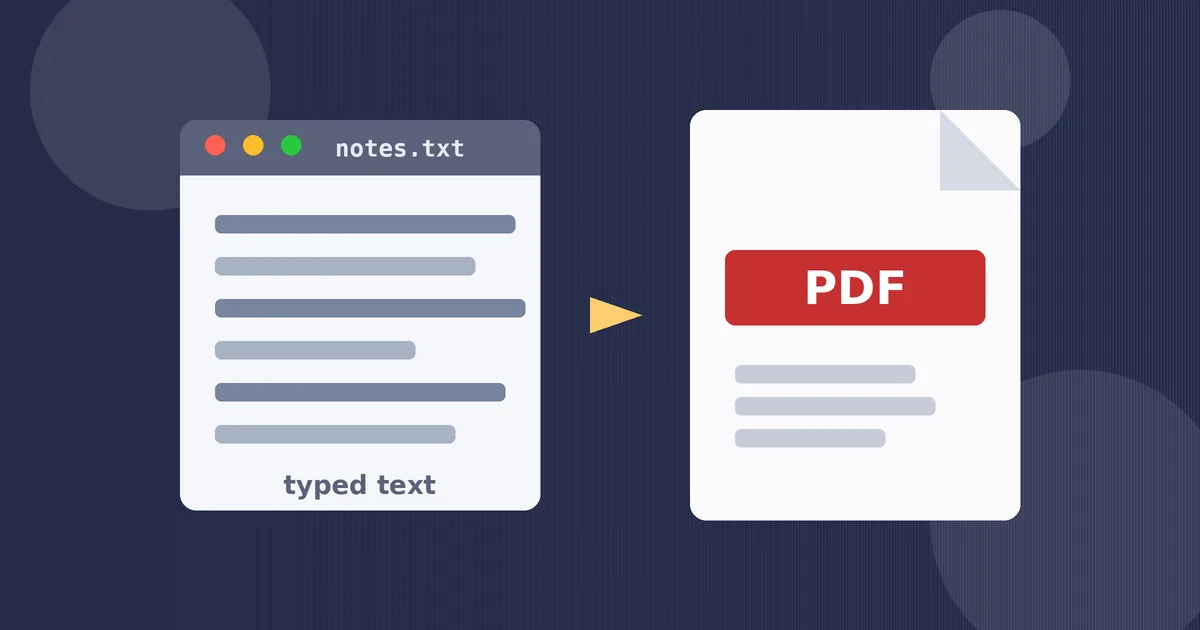
Plain text is the easiest thing to write and one of the hardest things to hand over. A note typed on a phone, a draft pasted from a chat, or a list copied out of an email has no fixed layout, no page size and no guarantee that it will look the same on the screen or printer at the other end. This converter gives that loose text a proper document shape. It takes the words exactly as you typed them, wraps each line to fit a real paper page, flows the result across as many pages as it needs, and saves the whole thing as a PDF file.
The finished PDF is a real text document, not a picture of your words. Every line is stored as selectable text, so a reader can search inside it, copy a sentence back out, or have a screen reader read it aloud. That matters for longer pieces, where a reader may need to find one name, date or figure quickly. It also keeps file sizes small, because a page of text needs far less data than a page-sized image.
If your starting point is a photograph or a scan rather than typed words, this is not the right tool for that file. Our Image to PDF Converter turns pictures into PDF pages, while this page works with text you can type, paste and edit before you convert it. The two tools sit side by side on purpose: images in one, words in the other, and no confusion about which job each one does.
How to Use This Text to PDF Converter
- Type or paste your text. Click in the large box and write directly, or paste text copied from a note, an email, a web page or another document. Line breaks and blank lines are kept, so a blank line between paragraphs in your text stays a blank line in the PDF.
- Add a title if you want one. The optional title appears at the top of the first page in a larger size, and it also becomes the name of the downloaded file. A clear title such as Meeting Notes or Rent Agreement Summary makes the file easy to recognise later.
- Choose a font size. Pick 10, 11, 12 or 14 point. Smaller sizes fit more words on each page and suit long reports, while 12 and 14 point are kinder for reading on paper and for anyone who prefers larger print.
- Choose a page size. Select A4 for most countries and for most home and office printers outside North America, or Letter for paperwork aimed at the United States and Canada. The preview idea is simple: what fits the page here is what prints there.
- Press Generate PDF. If the box is empty, the note under the button will remind you to add text first and nothing will download. When there is text, your browser builds the PDF and starts the download, and the note tells you how many pages were made and how large the file is.
How Text to PDF Works
A PDF page is measured in points, where one point is one seventy-second of an inch. An A4 page is 595 points wide and 842 points tall, and a Letter page is 612 points wide and 792 points tall. This tool leaves a margin of 54 points, which is three quarters of an inch, on every side. Text is set inside that margin, so nothing runs to the very edge of the sheet where printers tend to clip.
Wrapping is worked out from the font size you choose. At 12 point on A4, the usable width is 487 points and a typical line holds roughly eighty characters, depending on how many wide or narrow letters it contains. The tool measures each word, adds words to a line until the next word would cross the margin, and then starts a new line. A single word that is longer than a whole line, such as a long web address, is split across lines rather than being allowed to run off the page.
Lines then flow onto pages. The line spacing is about one and a half times the font size, which gives roughly forty lines on an A4 page at 12 point, a little fewer when a title takes the top of the first page. When the lines run past the bottom margin, a new page begins. Under the surface, the tool writes a proper PDF 1.4 file: a catalog, a page list with the correct page count, a content stream for each page that places every line, and a cross-reference table whose offsets point exactly at each part of the file. That table is why the document opens cleanly in every reader.
One honest limit follows from the font. The PDF uses Helvetica, a core font every reader carries, so files stay tiny with no font to embed. Helvetica here covers Latin-1, which includes common accented letters, but has no curly quotes or long dashes of its own. The tool therefore converts smart quotes to straight quotes and long dashes to hyphens, and replaces characters outside that set, such as many emoji and non-Latin scripts. Check the output if your text depends on special symbols.
Practical Examples and Use Cases
Notes that need to be shared. A student types revision notes on a phone, pastes them here at 12 point on A4, and sends one tidy PDF to a study group instead of a chain of messages. Everyone sees the same pages, in the same order, and can print them without anything shifting.
A draft for review. A writer pastes a short story, a poem or an essay draft, adds the title, and produces a clean reading copy. Reviewers get fixed pages they can refer to by number, and the author keeps the original text file for editing, generating a fresh PDF after each round of changes.
Records and receipts in words. Many useful records start as plain text: a copied chat export, a list of expenses, instructions from a landlord, or the details of a phone call written down afterwards. Turned into a PDF, that text becomes a stable record that can be attached to an email, uploaded to a form, or filed without depending on the app it came from.
Instructions and handouts. A teacher, coach or team leader can type a set of instructions once and hand out the same printed PDF to everyone. Choosing 14 point helps younger readers and anyone reading at a distance, while 10 or 11 point keeps a long handout to a sensible number of pages.
Checking length first. If you need to know how long a piece is before converting it, the Word Counter will give you the word and character count of the same text.
| Job | Suggested settings | Why |
|---|---|---|
| Short letter or note | 12 pt, A4 or Letter | Comfortable reading size on one or two pages |
| Long report or export | 10 or 11 pt, A4 | More words per page, fewer pages to print |
| Handout for a group | 14 pt, A4 | Larger text that is easy to read at a glance |
| US form supporting document | 12 pt, Letter | Matches the paper size the form expects |
Tips for a Clean Text PDF
- Proofread before you convert. A PDF fixes the layout, so a spelling slip that was easy to fix in text becomes a reason to rebuild the file. Read the pasted version once, in the box, before pressing the button.
- Use blank lines to make paragraphs. This tool keeps your line breaks and blank lines, so separate ideas with a blank line rather than relying on indentation. The page will look airy and deliberate instead of crowded.
- Break very long lines yourself. Pasted text from some sources arrives as one enormous paragraph per section. The wrapping will handle it, but adding your own line breaks at natural pauses gives you control over how the pages fall.
- Pick the title with care. The title becomes both the heading on page one and the file name, with spaces turned into hyphens. A short, plain title beats a clever one when the file is sitting in a downloads folder a month later.
- Match the page size to the printer. Printing an A4 document on Letter paper, or the other way round, usually still works, but the reader may shrink the page to fit. Choosing the size your reader actually uses avoids that quiet loss of size.
- Keep the original text. Treat the PDF as the delivery copy, not the master. If the wording needs to change, edit the text you kept, then generate a new PDF so the two never drift apart.
If you need an image in another format first, the Image Format Converter can prepare it before you build a document from it.
Frequently Asked Questions
How can I convert text to PDF online for free?
Type or paste your text into the box on this page, choose a font size and a page size, and press Generate PDF. The file is built in your browser and downloads straight away, with no account, no payment and no watermark.
Is my text uploaded to a server?
No. This converter runs entirely in your browser, so the text you type or paste never leaves your device, is never stored and is never logged. That makes it a safer choice for private notes, drafts, contracts and personal records.
Can I convert a long document that runs to several pages?
Yes. The tool wraps your text to fit the page width and flows it across as many pages as it needs, building a real multi-page PDF with a correct page count. A short note becomes one page, while several thousand words become a document of many pages.
Why do some characters change in the PDF?
This tool uses the standard Helvetica font built into every PDF reader, which covers the Latin-1 character set. Smart quotes and long dashes are converted to plain quotes and hyphens, and any character outside that set is replaced, so check accented or non-Latin text carefully before sharing the file.
Should I choose A4 or Letter, and which font size should I use?
Choose A4 for most countries and Letter for paperwork in the United States and Canada. For font size, 11 or 12 point suits normal reading and printing, 10 point fits more words on each page, and 14 point is easier for readers who prefer larger text.
Is the text in the PDF searchable, and can I edit it later?
Yes, the text is searchable and selectable, because each line is written as real PDF text rather than as a picture. You cannot easily edit a finished PDF, so keep your original text, change that copy, and generate a fresh PDF whenever the wording changes.